 Shift Diary
Create your account
Download the app and set up your business account. Free, and it takes a few minutes.
How it works
No installer, no server, no IT person. A phone at the gate, a tag per employee, and an account that keeps the records.
Download the app and set up your business account. Free, and it takes a few minutes.
Capture each employee with their name and number, and set up a clock station for every gate or site.
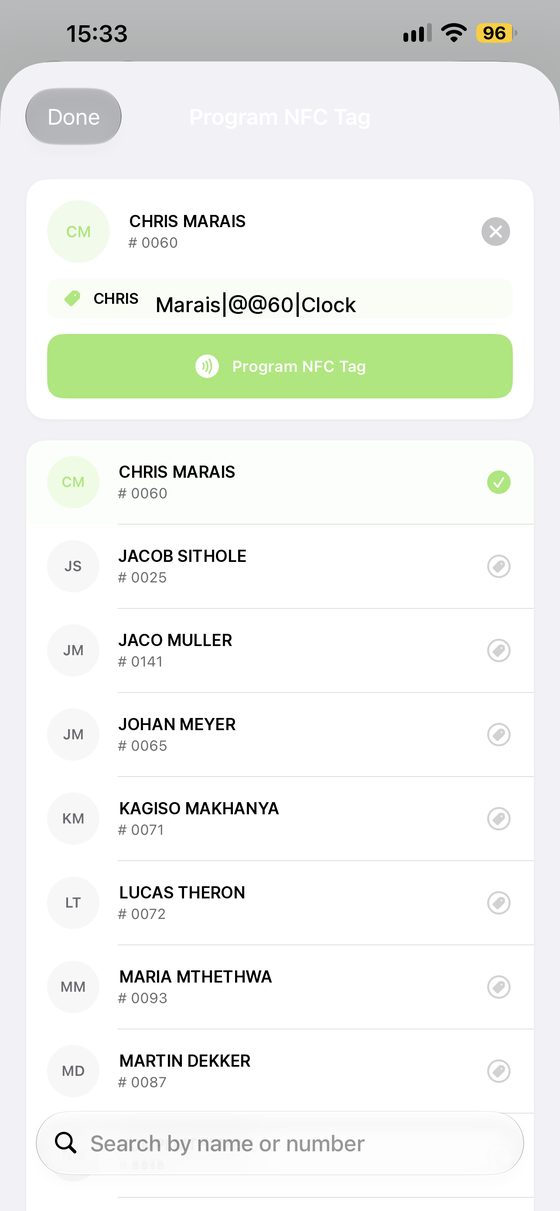
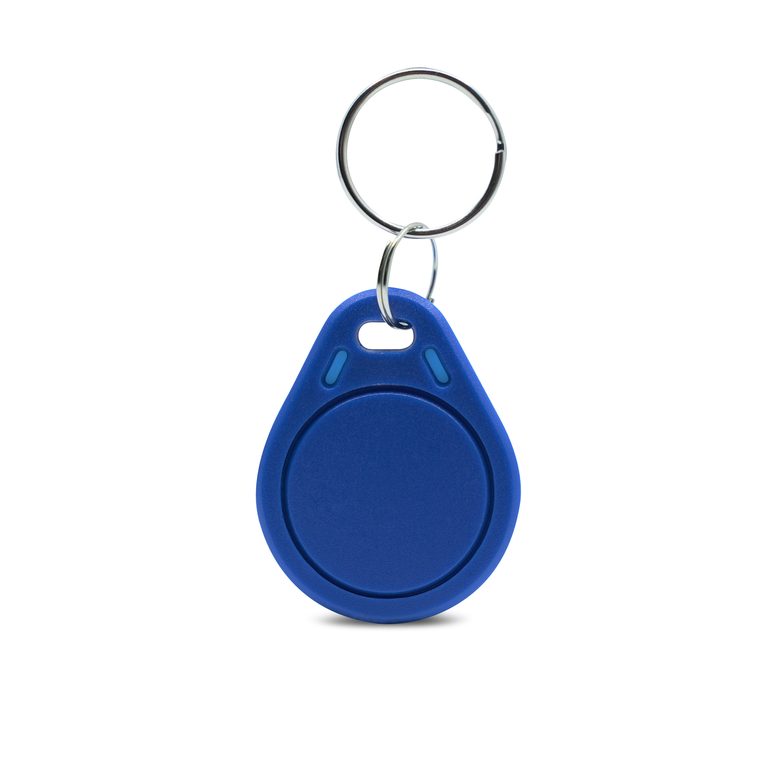
Hold a blank tag to an iPhone or Android phone, pick the employee, done. Buy your own tags or order them from us.
Up to four tags a second, in and out. You watch the board, and export the records when payday comes.
Open the employee list, hold a blank fob to the phone, pick the person, done. A lost tag is replaced the same way in under a minute — and until the new one is made, a manager simply clocks that employee in and out by hand, so no shift goes missing.
The phone at the gate signs in as a clock station and does one job. It can show today's clocking, so a supervisor can check who has tapped — but no history, no employee records and no account settings. You sign in as the account holder and get the dashboard, the full history and the exports.
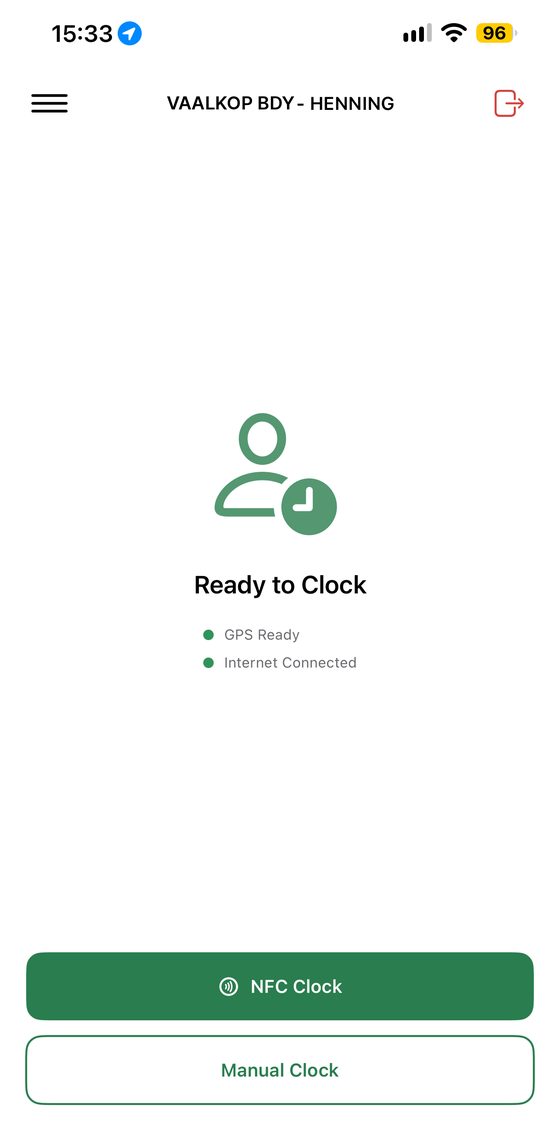
Less than people expect. If you have a phone with NFC and somewhere to keep it at the gate, you have a clock station.
Devices
Shift Diary is built on Apple first. You run your account from an iPhone, iPad or Mac. Android phones — a spare Samsung is the usual choice — make excellent clock stations at the gate, and that is the job they do.
| What you're doing | iPhone | iPad | Mac | Android |
|---|---|---|---|---|
| Run the account — dashboard, history, exports | Yes | Yes | Yes | — |
| Add and remove employees | Yes | Yes | Yes | — |
| Clock station at the gate | Yes | — | — | Yes |
| Create and program employee tags | Yes | — | — | Yes |
Tags are written over NFC, so they can only be created on a phone — an iPhone or an Android. Everything else you do from whichever Apple device is nearest.
Offline first
The clock-in is written on the device the moment the tag touches it. Nothing waits on a connection.
The second the device has data again, every waiting record goes up to our servers and appears on your dashboard. Nobody has to press anything.
Your history sits on secure cloud servers, backed up. Load shedding, a flat tower, a phone dropped in a dam — the record is already safe.
Download the app and we'll help you get the first station running.

WhatsApp 068 174 3083 · info@diarysa.co.za